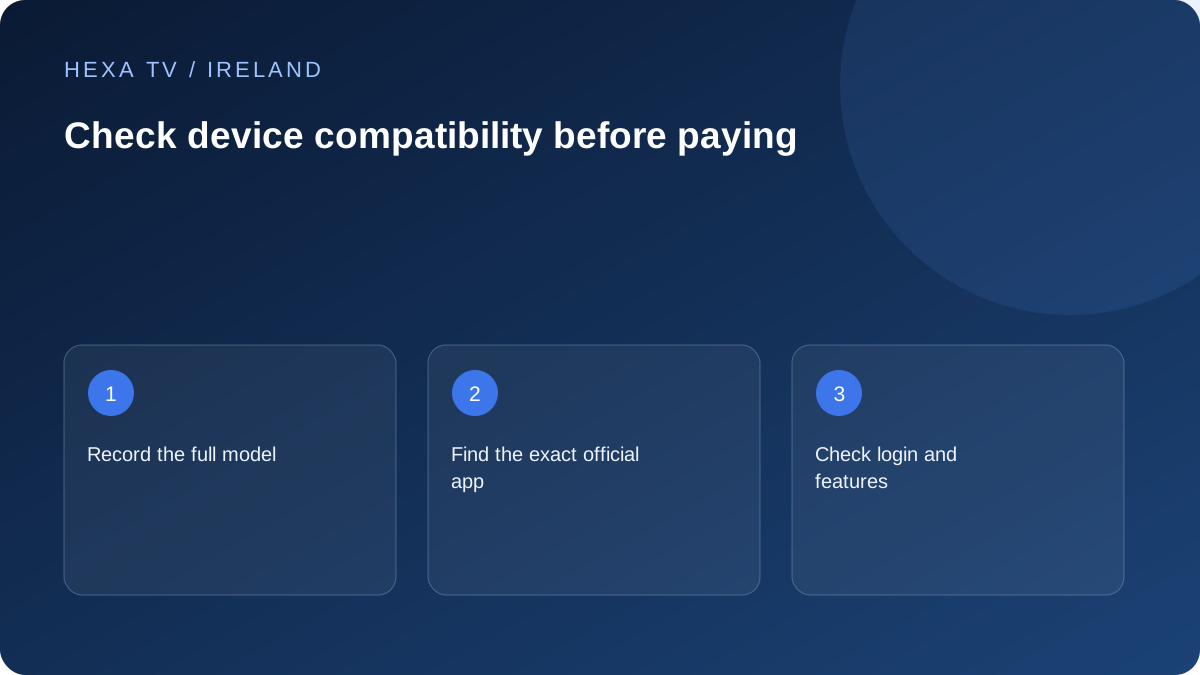
Collect an exact device identity
Find the manufacturer's full model code and software version in the device information screen or the product label. A television's retail series name is often too broad to establish app support. A separate streaming stick has its own operating system even when connected to a television from another brand.
Keep the supported app's exact name and publisher with the device details. Similar names and icons can belong to unrelated software. Verify the official store listing on the device you actually intend to use.
Separate four kinds of compatibility
An app can install successfully yet lack a provider's login method. A login can work while a particular audio or video format fails. The interface can also be unsuitable for a remote even when a mobile version of the app exists.
Ask separately about installation, account login, expected video and audio formats, and the controls you depend on. If subtitles, recording or catch-up are essential, request confirmation of that feature for the intended combination.
A device check you can keep
Complete this record for the main TV before checking secondary screens.
| Field | What to record |
|---|---|
| Hardware | Full model code, not only brand |
| System | Current operating-system version |
| Player | Exact app name and publisher |
| Account | Supported login method; no password in this record |
| Features | Subtitles, guide, audio, remote control, replay if offered |
| Result | Date, source tested and unresolved issue |
Consider the whole display and audio path
A separate streaming device connects through the television's input and possibly a receiver or soundbar. If the desired picture or audio mode matters, check those components too. A 4K source, decoder and display are not enough when another part of the chain cannot pass the chosen signal.
You do not need to buy the most expensive device to answer the compatibility question. Start from the actual service requirements and the features your household uses. Where an older TV's app support has ended, a supported external device may be an option if its connections fit.
Keep proof of a real check separate from claims
A store listing is evidence of availability for a platform, not a first-hand test of your entire setup. A provider's compatibility statement is useful but should identify the model and app. Save both with the date, then record your own result if you test it.
HexaTV has not performed device tests for this guide. The checklist is an original decision aid informed by manufacturers' documentation, with the unresolved compatibility status made explicit. Confirm the intended device, supported app and essential catalogue before payment.
Choose the platform guide that matches the actual screen
Use the television's model and operating-system information to choose the relevant guide. Android on a phone and Android TV or Google TV on a television are not interchangeable app environments. Likewise, an iPhone app listing does not establish an Apple TV version.
If the household uses a phone or tablet, follow the Android or iPhone and iPad guide for that device. If it sends video to a television, add a separate casting or external-display check. Installing the mobile app is only the first stage of that larger viewing route.
Check the store before buying replacement hardware
Inspect the official store on the exact device where possible and verify the publisher. Google, Apple, Samsung and LG publish their own installation guidance, but store availability still needs to be checked for the app and model in question. A broad brand list is not a promise about every generation.
If the required app is absent, ask the app publisher whether the model is supported. Do not assume sideloading an unofficial package recreates official support. A supported external streaming device may be an option, but compare its actual app availability, controls and connection needs before purchasing it.
| Observed situation | Next decision | What not to infer |
|---|---|---|
| Official app available on current TV | Check account and programme support | Every source and feature works automatically |
| App available only on mobile | Assess the intended mobile or supported casting route | The same app exists on the TV store |
| Old television lacks the app | Investigate a documented supported external device | The entire television must be replaced |
| App installs but cannot import the source | Check publisher-supported input methods | Installation proves provider compatibility |
| Video plays but a feature is absent | Inspect programme and device-specific controls | More screens or a longer plan adds the feature |
Include the viewer in the compatibility check
A technically supported app can still be unsuitable if the viewer cannot operate it with the available remote or needs a feature absent on that platform. Try ordinary tasks: open the app, choose the intended item, return to the guide, change an available track and leave playback.
Use the actual viewing distance and household audio arrangement. If another person normally provides assistance, check whether the setup remains usable when they are not present. These observations should be recorded as household usability checks, not promoted as laboratory testing or a universal judgement about the device.
Keep documentation evidence separate from a completed test
An official support page establishes what the publisher documents for a model or platform. A real household check establishes what happened on the specific device and version at that time. Keep both in the record without replacing one with the other.
If no hands-on check has occurred, write documented support, not tested compatible. If only one programme was checked, state that limit. This distinction is especially important when comparing a paid offer whose catalogue, territorial scope and account features have not been independently verified.
Revisit compatibility when a material part changes
A new television, operating-system update, retired app or changed source format can alter the result. Recheck the relevant stage rather than assuming last year's configuration remains supported indefinitely. Keep the original model and version details so the change is identifiable.
Do not remove the old working device until the replacement's essential route is confirmed. Where the new setup solves only one limitation, record that specific benefit. The household does not need the newest hardware by default; it needs a supported, usable combination for the programmes and controls it actually requires.