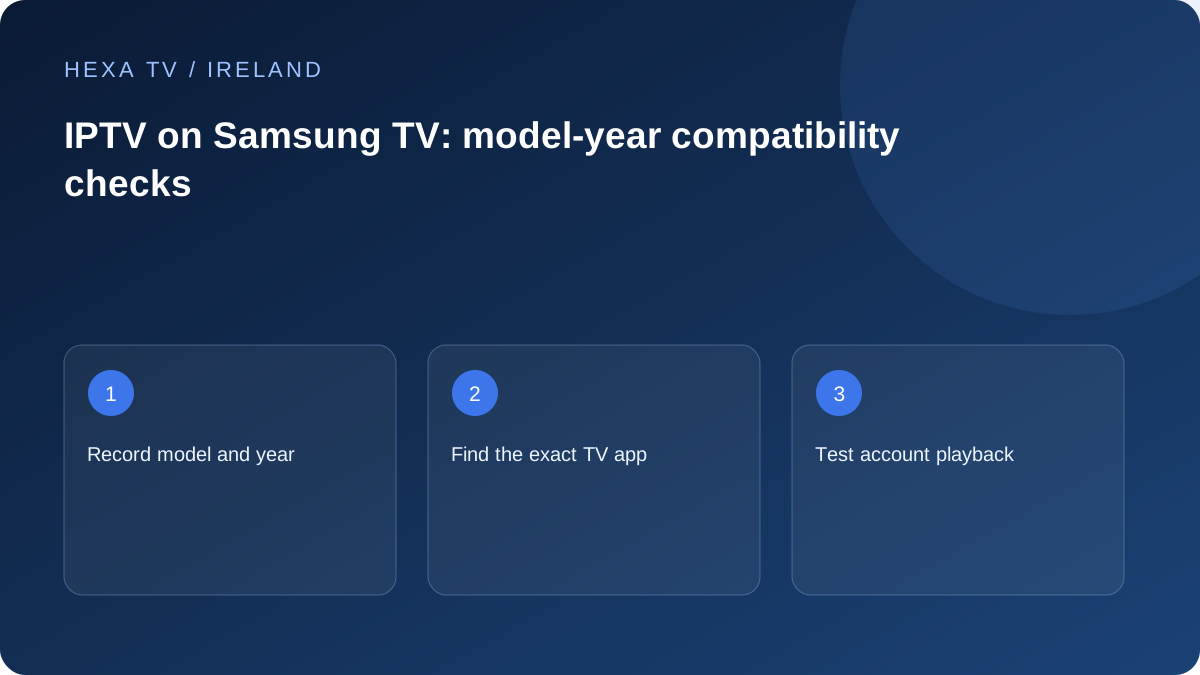
Check the app on the actual television
Samsung's support guidance explains managing apps through the TV interface and notes the Samsung account requirement for downloads. Consult the instructions appropriate to your model, then find the exact publisher and app supported by the provider.
If a search produces no supported app, do not assume the television is broken. Device generation, platform and region can affect availability. Ask the publisher for a current compatibility answer.
Keep the content setup separate
An app-store sign-in and a content-provider login serve different purposes. Confirm any player fee, then enter the provider account using the correct method. Test a known available programme before configuring favourites.
Write down where the player appears on the home screen. A household member should be able to return to it without navigating account settings or searching the store again.
Check limits before replacing equipment
If the TV cannot run the required app, compare a supported external streaming device with replacing the television. Check HDMI inputs, power and remote usability as part of that option.
For a picture or sound fault, determine whether it occurs inside the TV app, on an external device or across all inputs. Those paths require different checks. A model-specific diagnosis is more useful than a generic 'Samsung IPTV' fix.
Read the full television identity
Find the model code and software version through the television's information or its label. A broad range name can cover different years and platforms. Keep that identity with any compatibility answer.
If using an external box, record that separately. The box's player, system and updates are not the Samsung television's native app environment. A working external setup does not prove that the same app can be installed directly on the TV.
Use the actual supported store route
Samsung's official guidance explains managing applications and the account needed for downloads. Follow the instructions for the model and verify the intended publisher. The presence of an app with a similar name elsewhere is not enough.
If the player does not appear, check current publisher support for the exact television and genuine region. Do not assume an app-store search problem can be solved by buying a subscription first. Compatibility should be answered before the paid term begins.
Separate store access from content access
A Samsung account used to obtain software and a provider account used within a player are different credentials. Keep any player licence in a third line when relevant. This prevents an app activation screen from being confused with content expiry.
After the player opens, use only the provider's verified account format. Confirm whether entries load before trying to interpret a playback failure. Preserve the first unsuccessful stage and avoid repeatedly deleting the app while the account question remains unanswered.
Native TV app or external streaming device?
Compare the complete household route, not only whether a picture can appear once.
| Decision | Native Samsung app | External device |
|---|---|---|
| Software support | Exact TV model and app listing | Exact box model and app listing |
| Connection path | TV's own network connection | Box network and HDMI path |
| Remote routine | TV app navigation | Input switching and box controls |
| Updates | TV and app support routes | Separate box and player updates |
| Other viewing | Existing TV apps and aerial input | Independently checked app set |
| Extra cost | Any player licence | Hardware plus any licence |
Test the remote task before customising everything
Ask the everyday viewer to find an entry, use favourites, return to the guide and change a supplied subtitle track. Check the interface at the normal viewing distance. An app that expects a different control method can be awkward even when video works.
Start with a short list of essential entries. A large import can make it harder to determine whether the navigation itself is suitable. Keep child-profile restrictions separate from favourites; hiding an entry is not necessarily access control.
Investigate picture and audio at the right layer
If television menus and other native apps are visible but the player is black, preserve that scope. If only an external HDMI device is affected, record its input, output mode and any receiver or soundbar.
For sound, establish whether TV speakers work with a known source before changing an external audio system. Use model-specific supported settings and change one at a time. A content-account renewal does not repair an incorrect input or sound destination.
Check local storage and update actions deliberately
Before clearing data or reinstalling, note the player version, account method and any locally stored favourites. Read the television's description of the action so you know what will be lost.
After a relevant supported update, repeat the exact failed task. A different programme playing successfully is not proof that a crash in the guide has been resolved. If the fault persists, report the trigger with the TV model and software versions.
Assess an older model without assuming replacement is necessary
If native app support is unavailable, investigate a supported external device and the television's inputs. Check the full app set the household uses, including official Irish viewing routes, before choosing hardware.
The extra remote and startup sequence are part of the decision. A smaller hardware purchase can still be unsuitable if it makes everyday viewing difficult. Keep cost, compatibility and usability visible together.
Prepare a precise Samsung support handover
State whether the issue concerns the native app or an attached device. Include exact model, system, player, source, date and one comparison. Redact passwords and complete playlist addresses.
No Samsung model has been field-tested for this guide. The page supplies the checks necessary to establish a household result without inventing a broad all-model compatibility claim.