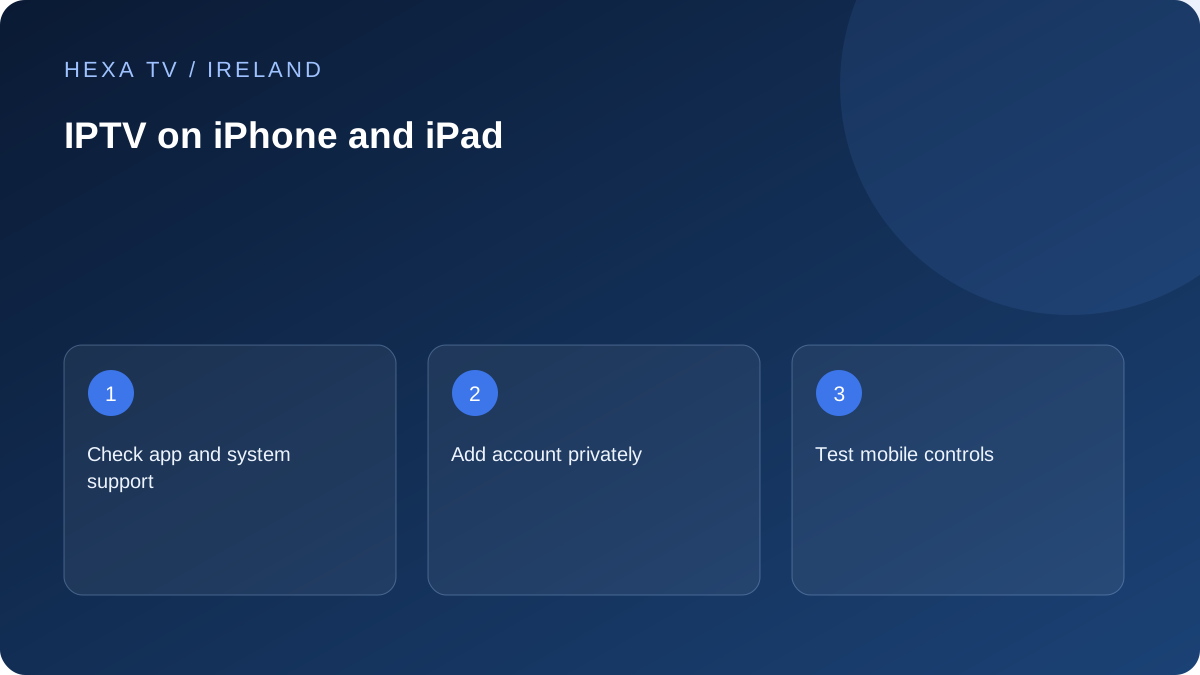
Check the App Store listing carefully
Confirm the publisher and the devices listed by the app. Read whether the download includes paid features, a trial or a separate licence. Use the content provider's supported setup instructions rather than assuming any player accepts every account type.
Keep account links out of screenshots and public messages. If the app uses an activation code, complete it only through the publisher's official process.
Test the intended audio and picture use
Try the programme with the actual headphones, speakers or other output you normally use. Check subtitles, screen rotation and returning from another app. Observe which setting matters rather than changing several controls together.
Before leaving Wi-Fi, review cellular data use and your allowance. A long live stream can consume a meaningful quantity of data, and the app may continue on another connection unless its settings prevent that.
Check external playback independently
AirPlay, screen mirroring and an app running directly on a television are distinct paths. Use the app's documented supported features and test the receiving device. The existence of a cast icon does not establish every programme's output permissions.
If external playback fails while local viewing works, record that distinction. The receiving device, display path or app feature may be relevant; it is not automatically an expired subscription.
Separate the Apple account from the viewing account
The Apple account used to obtain an app is not necessarily the account that authorises programmes inside it. A player may also have its own software licence. Before setup, write down which organisation manages each charge and recovery process. This avoids buying another app licence when a content login needs correction.
Read the listing for the device you own, including the required operating system and supported platforms. Do not infer iPad, Mac or Apple TV support from a similar product name. Keep any activation process on the publisher's official route, especially when a television or phone displays a code.
Choose a practical first-use checklist
On home Wi-Fi, open one confirmed available programme and inspect the controls you will actually use. Try landscape view, pause if provided, subtitle selection and your normal headphones. Then return to the app after briefly using another application. Note whether the programme resumes, reconnects or returns to its menu.
If the phone will be a second household screen, test within the actual concurrency allowance. A second login is not permission for a second active stream. Stop the TV session if required while setting up the phone, and only test simultaneous use after the plan's rules are confirmed.
Plan cellular use before leaving home
Check the device's cellular settings and the app's own quality or Wi-Fi-only options, where documented. Mobile reception, data allowance and roaming are separate from your Irish home broadband arrangement. A subscription that works at home may also have territory restrictions that do not disappear when the device travels.
If you need to estimate usage, measure a representative session and compare it with the operator's allowance. Keep the measurement period visible. Do not assume that an app's lower-resolution label always has a fixed bitrate, or that a download permission for one programme extends to the full catalogue.
Test AirPlay without assuming mirroring is equivalent
If the app advertises a supported AirPlay route, check the receiving device and the network requirements in the relevant official documentation. Test a programme that you are entitled to view. Observe whether the receiver is discovered, whether output begins and whether both picture and sound arrive.
A programme that plays on the phone but refuses an external display has not established a general account outage. Note whether the failure affects every programme or one title, and whether it occurs with an app's built-in output control or screen mirroring. These distinctions matter to support and avoid unnecessary password changes.
Recover an unresponsive app cautiously
Apple's iPhone and iPad guidance addresses applications that stop responding, close unexpectedly or will not open. Start with the supported close-and-reopen, restart and update checks appropriate to the device. Preserve the error and software version before changing anything.
Deleting an app can remove its local data, so confirm that account configuration and any important settings can be recovered before considering that step. If only one application fails, report the behaviour to its publisher. If the phone itself has wider connection or audio problems, follow the relevant Apple or network guidance rather than attributing everything to the content provider.
Make accessibility part of acceptance, not an afterthought
Check caption readability at your normal viewing distance and with the screen brightness you usually use. Verify that an available audio-description or alternate-language track is actually present for the selected programme. An iPhone's general accessibility capabilities do not manufacture tracks that the source has not supplied.
For a shared device, review purchases and app access separately from a player's content controls. Apple's Screen Time documentation explains device-level options, while an individual player may have different restrictions. Keep the recovery method private and test the controls as an ordinary viewer before assuming the setup is suitable for a child.
Keep a useful record for the next device change
Save the supported app name, account supplier and the fact that a particular output route worked under stated conditions. Do not save a screenshot showing the entire private playlist address. When replacing the phone, check whether the player licence transfers and whether the provider needs the old device session removed.
This small record also helps Irish households that switch between an official broadcaster app and a separate player. Identify the actual app and programme in a support request; an issue with one catalogue does not establish that every viewing option on the phone is unavailable.