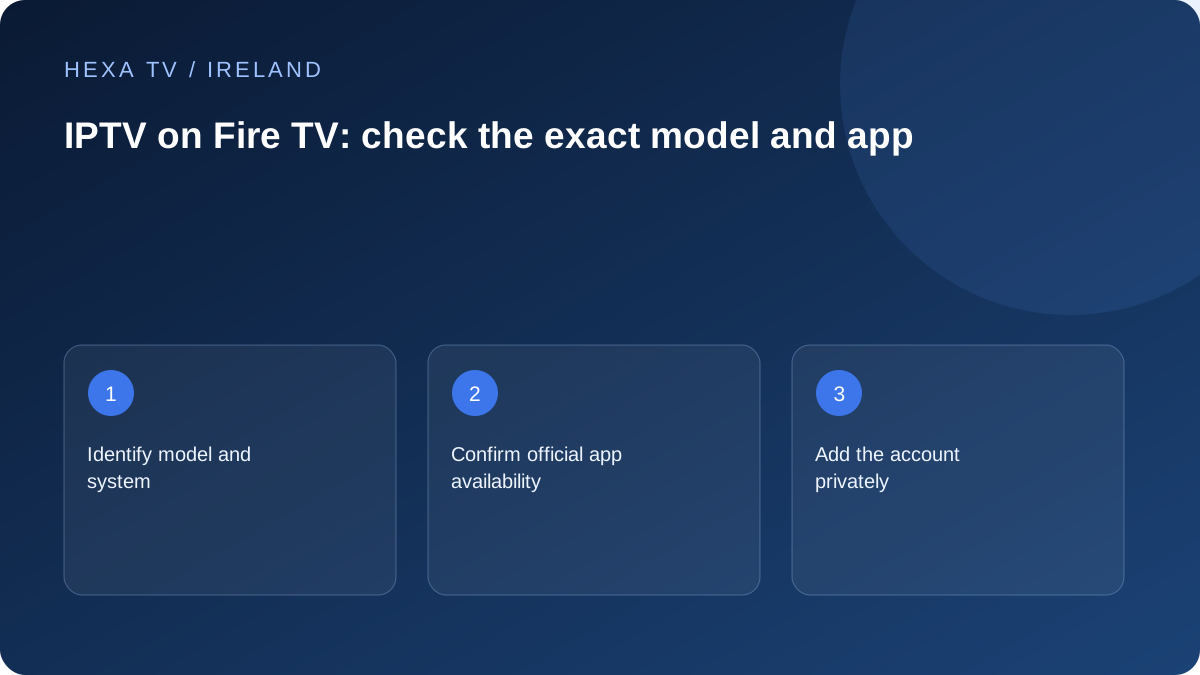
Confirm the model before following a guide
Open the device information and record the model and software version. Ask the provider for an app that supports that exact device and is available through its supported distribution route. Do not assume that a package made for an Android phone belongs on your TV.
Amazon's official instructions describe finding and downloading apps through Fire TV. Use the device's actual store listing and publisher details as the installation reference; app availability can vary by device and region.
Verify power, display and account separately
Use the device's intended power arrangement and a suitable TV input. Confirm that its home screen and a known working app behave normally before adding an IPTV account. This gives you a baseline if the new player later shows a black picture or closes.
Enter only the provider's supported account method. Keep the complete playlist or password off photographs of the TV and out of remote-control clipboard tools you do not trust.
Check remote use and the TV location
Test channel navigation, favourites, audio and returning from standby with the actual remote. Then compare playback at the installed TV position. A streaming stick behind a television may face a different wireless environment from a phone beside the router.
If a required app is absent or unsupported, stop at the compatibility question and ask for a documented alternative. This guide does not supply sideloading assumptions or promise that a particular player runs on every Fire TV model.
Create a Fire TV identity card
Find the exact product name and software information on the device, not only the name used in a shop listing. Keep a note of the power equipment and the television input. If the device was bought second-hand, establish the legitimate account and update state before adding a paid content account.
Ask the provider for a supported player on that precise model. A screenshot from another Fire TV generation is not sufficient evidence. Keep the answer with the app publisher's current listing so a later change can be traced to the relevant software or device.
Separate the TV input from the Fire TV software
A television can show aerial programmes correctly while the HDMI device has no picture. That means the display has a working route, not that the Fire TV setup has succeeded. Select the actual input and confirm the Fire TV home screen first.
If that screen is absent, inspect power and the supported connection path before entering or replacing credentials. Amazon's help includes device restart and frozen-screen guidance; use the instructions for the model rather than improvising repeated cable changes. Record any intermediate soundbar or receiver because it adds another stage.
Install one supported player and preserve its identity
Search through the device's official app route and verify the publisher. Check whether the application is the player itself or merely an account-management utility. Read any licence or in-app purchase terms before assuming the content subscription includes them.
Keep a harmless account label and a private record of the supported login method. Do not photograph a full playlist URL on the TV screen for public help. If the required app is unavailable, resolve the compatibility question instead of using a similarly named substitute or an old installation package of uncertain origin.
Separate the first-run outcomes
Use the first unsuccessful stage to decide the next question; successful earlier stages remain useful evidence.
| Stage | What success establishes | Next question if it fails |
|---|---|---|
| Home screen visible | Power and basic display path work | Input, power or hardware guidance |
| Player opens | The application can start | Version, storage or publisher support |
| Account accepted | That login method is accepted | Account state and verified credentials |
| Catalogue appears | The import supplies entries | Supported format and scope |
| One source plays | That source works under these conditions | App, source or network comparison |
| Remote routine works | The household can operate the setup | Interface and accessibility changes |
Assess the position behind the television
A stick or compact device installed behind a TV may sit in a different radio environment from a laptop on a table. Record the actual position and keep ventilation clear. Follow the manufacturer's intended power arrangement rather than assuming any available USB source is equivalent.
If playback is unstable, compare a supported Ethernet arrangement where practical or another documented placement option. Keep the source and app unchanged. An improvement is evidence about that comparison, not proof that the content provider can never be at fault.
Check the Irish household's other viewing routes
List the official broadcaster apps or existing aerial route that the household still uses. Check each app's current support independently. The presence of one player on Fire TV does not prove that every Irish broadcaster app is available on that model.
Ask the everyday viewer to switch between the Fire TV input and the existing route, adjust volume and return to a favourite. Label the input clearly if the television supports that function. A short familiar routine can matter more than adding many catalogue groups to the player.
Use targeted maintenance for a repeatable fault
If the app closes or freezes, record the action that triggers it and the current versions. Check Amazon's and the publisher's supported restart or app-maintenance guidance. Do not assume clearing cache and clearing app data have the same effect.
Before deleting software or data, preserve the supported login details privately and identify locally stored favourites. Repeat the original trigger after one change. If an unrelated source now works, that does not demonstrate that the original crash is fixed.
Prepare a device-specific support report
Include the full Fire TV model, system and player versions, TV connection path, source, local time and first failing stage. Say which other app or source worked. This gives the recipient a bounded comparison instead of a vague Fire Stick problem.
No hands-on HexaTV test of this hardware is claimed. Official guidance supports the process, while actual compatibility and performance remain specific to the device and authorised account being used. Resolve an essential app gap before committing to a longer term.