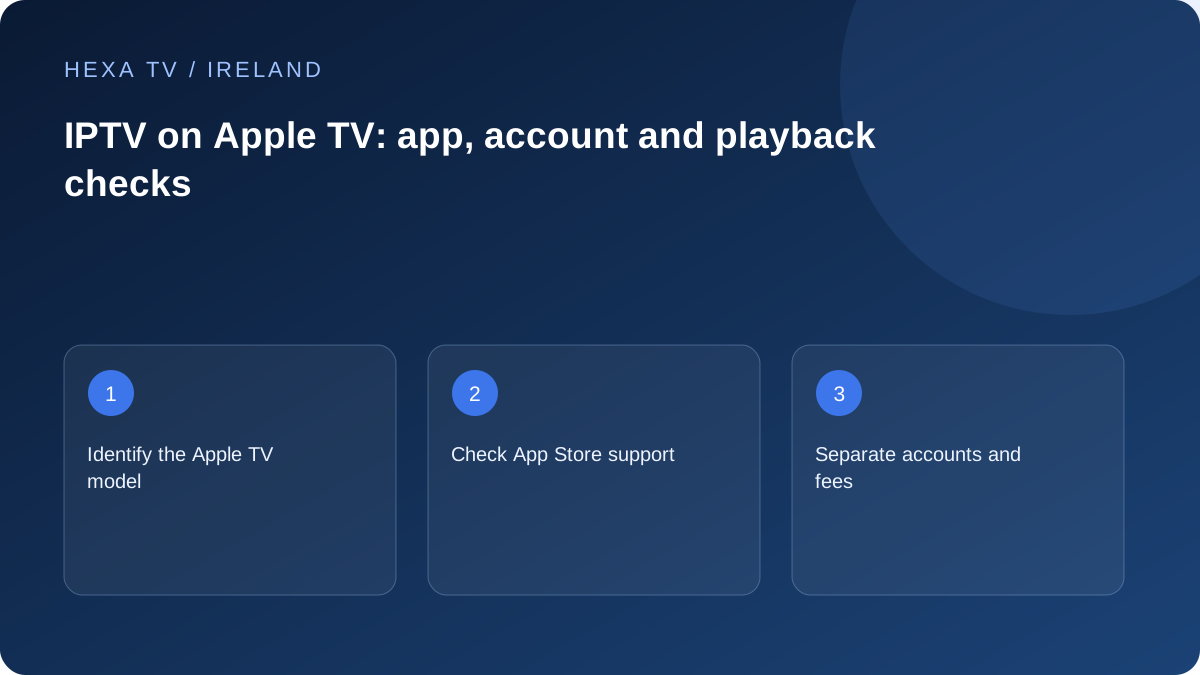
Identify the hardware generation
Apple's documentation distinguishes devices that can install App Store apps from older models with only built-in apps. Record the exact hardware model instead of using 'Apple TV' as the complete compatibility description.
Search the device's App Store for the app your provider supports. Check the publisher, supported system version and any player subscription or in-app purchase.
Separate the Apple account from content access
The account used for app downloads does not automatically supply an IPTV subscription. Add the content provider through the player's supported method and keep the two payment records separate.
If the app offers a device-linking code, use its official activation instructions. Do not send that code or a full playlist address to an unknown helper.
Check the complete picture and sound path
Test ordinary playback with the TV speakers before adding complexity from a receiver or soundbar. Then check the intended audio path and the exact source format. An app can open successfully while a particular format remains incompatible.
Use the remote for guide navigation, favourites and subtitles. If a programme is essential, confirm it in the offered territorial catalogue rather than assuming the availability of an app proves the content is included.
Distinguish Apple TV hardware from the Apple TV app
A television can have an Apple TV application without being Apple TV hardware. The app on that screen does not create a tvOS App Store or make every tvOS player installable. Identify the actual box and model before looking for a player.
Apple's installation guidance says Apple TV 4K and Apple TV HD can obtain apps through the App Store, while older third-generation hardware is limited to built-in applications. Verify the current guidance for the exact model rather than purchasing an account on the basis of the Apple TV name alone.
Confirm the player purchase separately
Read the app listing for the supported system, publisher and any paid features. A Get button, trial or software subscription concerns the app's own terms and is not evidence that a third-party content account is included.
Keep the player receipt and provider offer separately identifiable. If an activation notice appears later, you can determine which product needs attention instead of paying an unrelated charge. Ask about licence recovery and device replacement before assuming a purchase follows every household screen.
Add one authorised account with the documented method
Check whether the player accepts the provider's supplied account type. Use the verified address and fields, keeping a complete playlist distinct from a server-only field. Do not test credentials on addresses found in unrelated tutorials.
After entry, confirm catalogue loading and one available source. Keep the first failed stage in a non-secret note. A successful account login and successful audio/video playback establish different things; neither is a blanket catalogue or quality guarantee.
Apple TV setup checkpoints
Use the checkpoints to distinguish software, content and display questions before changing settings.
| Checkpoint | Record |
|---|---|
| Hardware | Exact Apple TV model and tvOS version |
| App | Name, publisher and licence scope |
| Account | Supported login type, no secret values |
| Picture | Source and TV input used |
| Audio | TV speakers or identified external path |
| Controls | Guide, back, favourites and subtitle tasks |
| Network | Actual Wi-Fi or Ethernet connection |
| Support | First failing stage and local time |
Build the audio and video path gradually
Begin with the simplest supported connection to the television and a known available programme. Confirm sound through the intended basic output before adding a receiver or soundbar path. Record the TV input and any intermediate equipment.
If a particular video or audio mode fails, compare a supported alternative using model-specific guidance. Do not force an output copied from a different television. A 4K-capable box cannot guarantee that every source is native 4K or that every connected component accepts the chosen format.
Test the network on the Apple TV itself
A working phone connection nearby does not necessarily describe the box's path. Record whether the Apple TV uses Wi-Fi or a supported Ethernet connection. Apple's official network guidance distinguishes those routes.
For a buffering comparison, hold the source and app steady and alter only the connection where practical. If a cable improves playback, retain that observation for the local network investigation. If one source fails on both routes while others work, preserve the source-specific evidence instead of repeatedly changing the router.
Check the remote routine for the Irish household
Ask the regular viewer to open the player, find a favourite and return to another television route using the actual remote. Check that guide text and focus are visible from the usual seat.
Verify official Irish broadcaster app support separately where those services are needed. A player working on Apple TV is not a test of every other app. Keep a simple note of the input and application names so another viewer can recover from an accidental navigation change without entering account settings.
Keep AirPlay and native-app use as separate observations
A source viewed through a native tvOS app and a source sent from another device may use different software and permissions. Check the supported feature rather than assuming a mobile stream guarantees external playback.
When testing another device, respect the provider's session rules and stop old playback if necessary. Record sender, receiver and method if only external playback fails. Changing a working account password is not a direct answer to an unsupported output route.
Preserve the useful evidence before maintenance
Record current versions and the repeatable trigger before an update or reinstall. Understand what happens to local favourites and account data. Use Apple's and the publisher's supported recovery routes, and keep exported configuration private.
The final handover should identify a working baseline and unresolved gaps. This article is documentation-based guidance, not a HexaTV hardware review or a guarantee of future app support.