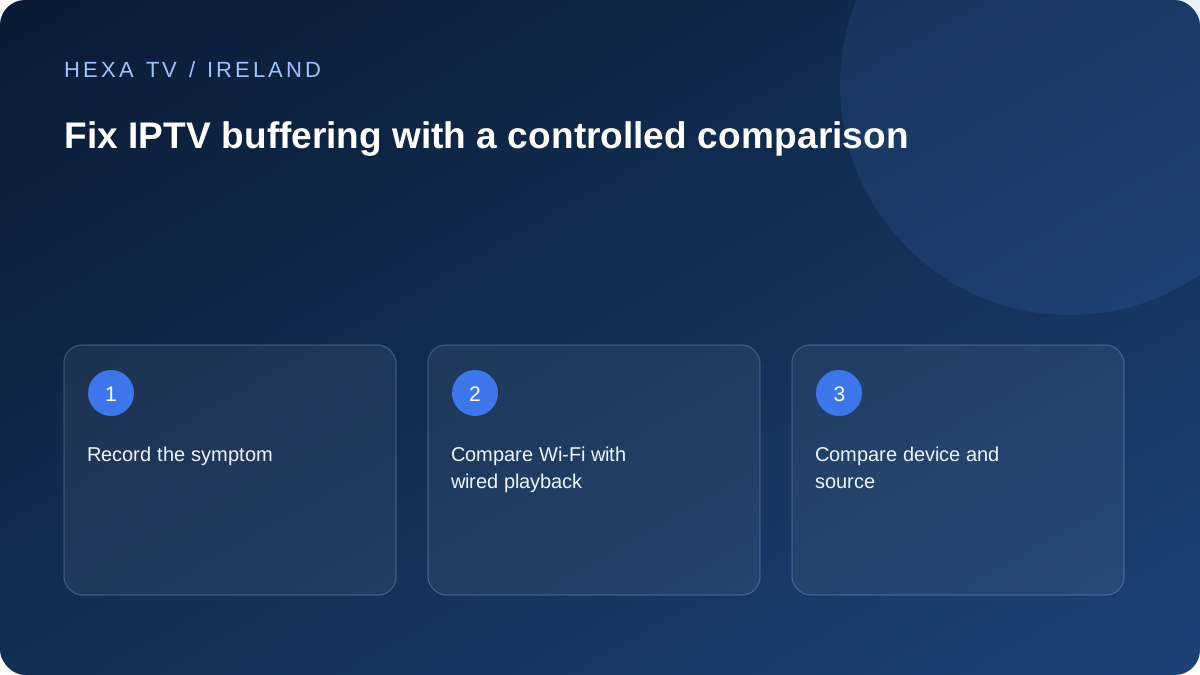
Identify the symptom before choosing a fix
A loading spinner followed by resumed playback is different from an application closing, a black picture with uninterrupted sound, or a television losing its HDMI signal. Write down what the screen actually does and whether the remote still responds. If an error appears, preserve the exact wording and time, removing any account address from the screenshot.
Start with the simplest scope question: is the fault confined to one programme, one application, one device, or everything using the connection? Do not purchase another subscription or a faster broadband package until you have answered at least part of that question. A higher headline speed does not repair an incompatible app or a failing programme source.
Use a short diagnostic decision table
These are directions for investigation, not guaranteed diagnoses. Choose the row matching your observation and perform one test before moving to the next. Stop other account sessions if the allowance does not permit simultaneous viewing.
| Observed symptom | One useful test | What the result suggests | Next action |
|---|---|---|---|
| One channel pauses; another is stable | Compare both on the same device, without changing network settings | The fault may be limited to the source or its format | Report both programme names and the observation time to the content provider |
| Several apps pause only on the television | Compare the TV's Wi-Fi connection with a practical wired connection | The TV's wireless path may be involved | Examine local placement and signal before changing the broadband product |
| The application closes to its home screen | Open its menus without starting playback, then try an available programme | App or device behaviour differs from a loading pause | Follow the app-crash branch and official device guidance |
| Playback pauses on several wired devices | Pause a known large household download, then repeat | Shared demand or an upstream problem deserves attention | Record demand and timing; involve the broadband provider if the wider fault persists |
| Picture freezes while sound continues | Try another programme with the same device output | Decoding, format or application behaviour may be relevant | Record the source and app version; do not assume weak Wi-Fi |
| Screen loses the device signal | Check whether the device home screen remains visible | An HDMI or power problem can resemble a stream failure | Use the display and cable checks rather than replacing login details |
Run one fair Wi-Fi comparison
Choose a programme that is currently available and note when playback starts. Observe for a practical interval long enough to include the usual fault. If the television or streaming device supports Ethernet and a safe cable route is available, compare over that connection while leaving the app, programme and quality setting unchanged.
Record unavoidable differences. Live content moves on, another household member may begin a call, or the fault may not recur. A wired improvement is evidence about the local wireless path, not proof that the internet service is faultless. If no cable comparison is practical, a phone tested beside the router is still not a measurement of the television's connection through several walls.
Avoid placing loose cables across walkways simply to finish a test. A temporary, supervised setup is enough to collect evidence; a permanent cable route needs suitable planning. Restore the normal arrangement when the comparison is finished.
Check the device without deleting the account
On Google TV, use Google's documented restart and update guidance for the exact model. On Fire TV, Amazon's application guidance distinguishes force-stopping an unresponsive app from clearing its stored data. On LG televisions, the official low-memory guidance is relevant when an actual memory warning appears. These procedures address device behaviour; they do not verify a provider's stream availability.
First close and reopen the affected app through the normal interface, then restart the device if the fault remains. Check for official app and system updates when convenient. Keep the device powered during an update and follow its own instructions. Test after each completed action so you can tell whether the symptom changed.
Do not clear application data, reinstall, or factory-reset as a first response to a loading pause. Those actions can remove account configuration, favourites and downloaded information. Before any documented destructive step, confirm that you can recover the login privately and understand what the device will erase.
Separate household demand from a speed-test result
An Irish home's evening viewing may overlap with a work call, a games download or another television. Note the activities actually occurring instead of assuming congestion because the clock shows a busy hour. Temporarily pausing a known download is a useful comparison when the household agrees; turning off unrelated equipment at random is not.
Run a speed test separately from the playback baseline because the test itself uses the connection. Save its device, connection type, time and result together. A package advertised at a particular speed, a router link rate and a measured internet download result describe different things.
ComReg's Broadband Checker can help investigate available services at an address. It does not diagnose an app, certify an IPTV provider, or prove the speed reaching a television. If several services fail over a wired connection, bring the timed observations to the broadband provider before deciding that a new package is necessary.
Use a realistic observation log
The following is a fictional example of a useful support record, not a HexaTV test result. Replace each field with your own observation; do not copy its outcome as evidence about your household.
| Field | Illustrative entry |
|---|---|
| Date and local time | A stated date, 20:10–20:25, Irish local time |
| Device and software | Exact TV or streaming-device model; installed app and version |
| Initial condition | Programme A over Wi-Fi; two loading pauses; other household activity noted |
| Changed condition | Same app and available programme over Ethernet; no pause during a comparable interval |
| Unchanged details | Same account, picture-quality setting and display |
| Limits | Live content was not identical; no second evening observed |
| Question for support | Which documented check should follow if the wireless-only pattern recurs? |
Know which setting can help—and what it cannot establish
A supported lower-quality option may reduce the amount of data requested and can be a useful temporary accommodation. It cannot establish whether the underlying restriction is the home connection, shared demand or a source problem. Write down which option you selected and whether picture readability remained acceptable.
A larger player buffer may postpone the start and absorb some brief interruptions, but it also changes the viewing experience. Use only documented controls and preserve the original value. Do not apply a list of guessed DNS, security or regional changes from an unrelated device tutorial.
More permitted streams addresses account concurrency, while a player licence concerns software features. Neither is a universal buffering treatment. If support recommends a paid change, ask what observed constraint it addresses and what can be checked before committing.
Escalate with a clear stopping point
Send the symptom, device, programme, local time and comparison result through the verified support route. Do not attach a complete playlist URL or password. State which tests were not possible. A concise factual report is more useful than a conclusion such as 'all servers are bad' based on one interrupted programme.
If the same source fails across supported devices while others work, preserve the home setup and ask the provider to investigate. If the wider connection fails across services, involve the broadband provider. Where the symptom disappears, record 'not reproduced' rather than declaring a cure. Repeat the same baseline if it returns; avoid accumulating changes whose effects you cannot separate.