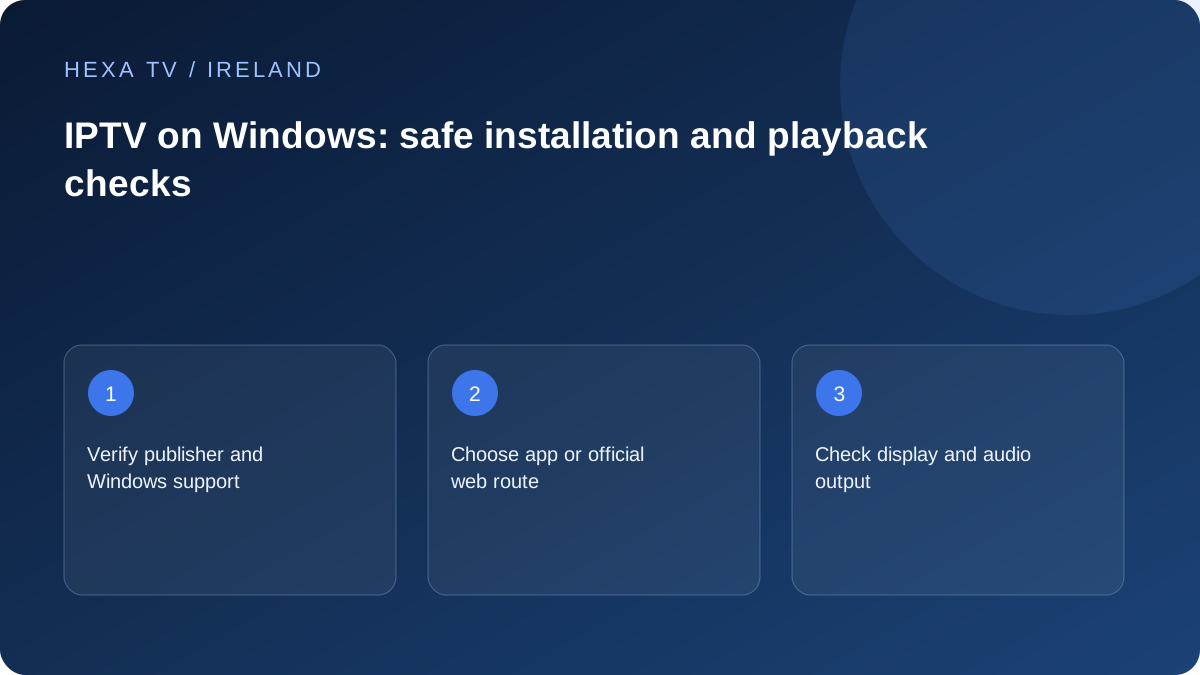
Choose a documented installation route
Microsoft documents installing apps through its Store and supported online sources. Start with the publisher's official listing or site, then check the Windows version and hardware requirements.
Avoid download pages that disguise an installer advertisement as the player. If your computer is managed by an employer or school, follow its software policy rather than weakening device controls for a viewing app.
Keep browser and player results separate
A provider's web player and a desktop player may use different login and playback methods. Record which one you tested. If one works and the other does not, that is useful compatibility evidence rather than proof of a general account failure.
Check the selected audio output, especially after connecting a monitor or HDMI television. A picture on the big screen and sound on the laptop can be a routing issue, not a missing audio track.
Prepare for a full viewing session
Test with the laptop powered as intended and the display arrangement you will use. Check whether sleep, lid closure or a power-saving setting interrupts the session, using the computer manufacturer's guidance.
If a fault appears, note the app or browser version and the exact display path. Keep passwords and playlist addresses private. A report that distinguishes laptop screen from HDMI output saves time.
Decide between a browser and a desktop application
Begin with the method the content provider actually supports. A web player avoids installing a separate player only if a genuine supported web option exists; typing an M3U address into a search engine is not a substitute. A desktop application can offer different controls, but it may require a separate licence and a supported account format.
Record the publisher, software version and Windows version in a short setup note. If you use more than one browser, identify which one the provider supports. Do not assume that a successful login proves playback compatibility: authentication, programme loading and video output are separate stages.
Run the first test on the computer itself
Use the built-in screen or the ordinary directly connected monitor first. Open a confirmed available programme, check sound, and try the subtitle and audio selectors where supplied. Keep the window in a normal usable position before experimenting with full-screen or television output.
If the app opens but a programme fails, try one other confirmed programme. If the application never opens, concentrate on software requirements and installation. This distinction makes the support request more precise. It also avoids changing router settings to address an installer or application-launch error.
Prepare HDMI viewing without changing the subscription
Before connecting the television, identify the computer's output and any adapter required. Check the relevant hardware manuals for supported display modes. With the television selected, confirm that the desktop is visible before expecting a protected programme to play.
Check the audio destination separately after connecting. A laptop may continue using its speakers or send sound to another output. If the desktop appears but a particular programme stays blank, report that exact difference to the service or app publisher. A display showing the Windows desktop does not establish every content-output permission.
Make room for ordinary household use
A laptop used for Irish evening viewing may also run a call, backup or large download. Record those activities during any performance check. If you pause a known download for comparison, restore it afterwards and note that the condition changed. Do not describe a deliberately quiet test as the normal household baseline.
Check the intended power and sleep arrangement using the computer manufacturer's guidance. Do not blindly disable every power-saving feature. If closing the lid ends playback, the observation belongs to the computer's display and power configuration, not automatically to the content account.
Use repair options proportionately
Microsoft explains that some Windows applications offer Repair and that the available controls depend on the application. Consult the official instructions for your Windows version; do not expect every player to expose the same button. Record the error and close the app normally before applying a supported recovery step.
A reset or reinstall can remove locally stored settings. Confirm that the private login can be recovered and that you understand which information will be deleted before proceeding. Registry cleaners, random driver packages and a full Windows reinstall are not sensible first responses to one programme failing. Keep security warnings visible and resolve the publisher question rather than dismissing them.
Handle browser failures without exporting secrets
If the official web player displays an error, record the page function, browser version and wording, but remove credentials or token-bearing addresses from screenshots. A browser extension or site-data issue can affect one route while a supported desktop app behaves differently, yet that comparison alone does not identify the cause.
Use the provider's documented browser guidance. Do not disable every protection or clear all browser history as a generic experiment. If a targeted site-data reset is recommended, understand that it may sign you out. A private support report should describe the result without including an exported cookie file or password.
Keep the existing local viewing option available
An official Irish broadcaster's browser service has its own availability and requirements. It can remain an independent option while a separate player is evaluated. Its success does not prove that another catalogue is authorised, and its failure does not demonstrate that every internet television service is unavailable.
When the Windows setup meets the actual need, save the app identity, device and output route privately. On a future computer replacement, recheck compatibility and licence transfer rather than assuming a copied settings folder grants the same permitted access.