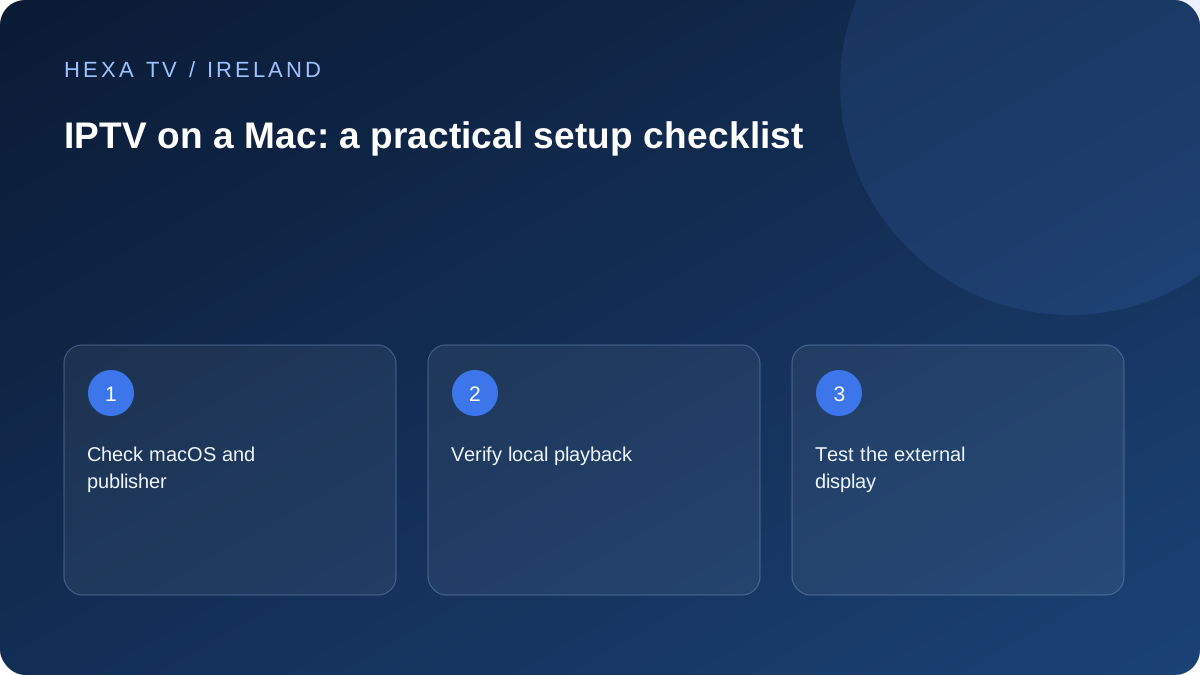
Verify software before adding the account
Use the publisher's official distribution route and read the app's system requirements. Confirm whether the content provider supports that player or a browser alternative. Do not treat a generic media player's existence as proof that it can use every subscription format.
If the app asks for a licence, separate that charge from content access. Keep a record of the publisher and version so future support requests identify the actual software.
Test the Mac first, then the television
Begin with the built-in display and a known available programme. Confirm sound and controls. If you intend to connect a television, test the adapter, cable, output mode and audio destination as an additional step.
A problem that appears only on the external display has a different scope from a stream that never plays on the Mac. Record both results before changing the content account.
Keep the viewing setup predictable
Check that the computer remains powered and awake for the intended session using supported system controls. If you change a setting for a test, record the original value and restore it when no longer needed.
Protect playlist URLs and account credentials from screen sharing, browser history screenshots and shared notes. If troubleshooting requires another player, use a supported option and compare the same programme under the same connection.
Match the app to the Mac you actually own
Record the Mac model and installed macOS version, then compare them with the player's current requirements. The existence of a similarly named iPhone application is not proof of a supported desktop version. If the provider offers a browser route, check its supported browser separately.
Use the App Store or the publisher's verified distribution path. A website claiming to have an unlocked edition is not evidence of authenticity. Read any licence terms before adding the content account, and keep the player purchase separate from the subscription receipt.
Start with a small, observable playback check
Open a confirmed available programme on the Mac's normal display. Confirm picture, sound and the ability to navigate back to the guide. Test captions or alternative audio if they are important to you and supplied for that programme. Record what worked rather than assuming that every item shares the same format.
For a failed item, note whether the catalogue loaded and whether another programme plays. An error before the account opens should be described differently from a freeze ten minutes into playback. This keeps the next action aligned with the actual failing stage.
Identify ports before buying an adapter
Apple's port-identification guidance is useful because Mac models differ. Find the specification for the exact machine and the television's accepted inputs, then select a cable or adapter that supports the intended display path. A connector that physically fits is not a complete capability description.
Connect the display according to the manufacturer instructions and confirm ordinary desktop output first. Inspect the audio destination as a separate setting. A monitor without speakers, a television and headphones may appear as different choices; do not assume that a visible picture proves where sound is being sent.
Keep browser and desktop-player evidence distinct
A supported browser stream can work while an installed player fails, or the reverse. Save the exact route and version with the observation. That difference is useful to the provider, but it does not by itself prove that one entire platform is faulty.
If the browser is the affected route, follow its official site-specific guidance. Avoid broad removal of saved data or disabling every privacy control. If a particular site-data reset is recommended, expect that it may sign you out and preserve the account-recovery route before continuing.
Recover a frozen player without losing more than necessary
Apple recommends basic app and Mac recovery checks for an application that stops responding. Try a normal quit first, preserve any error, and use the documented force-quit control only if the app will not respond. Restart and official update checks can follow when appropriate.
Deleting and reinstalling software may lose stored app data. Before that step, confirm that the private account information is available and identify any favourites or settings you need to restore. Do not remove unrelated system files or install a general-purpose cleaner to address one player fault.
Plan the practical evening arrangement
A Mac used for both work and viewing can have background uploads, backups and calls affecting the session. Note those activities when investigating interruptions. If you temporarily pause one, describe the change honestly and return it to its normal state afterwards.
Check power and sleep settings through the supported system controls, particularly if an external display is used. Keep the computer in a suitable ventilated position. A viewing setup should not require hiding a laptop in a closed space or balancing cables where someone may trip.
Hand off the setup without sharing the secret
For another household member, explain how to open the correct application, select the intended audio output and return to ordinary TV viewing. A simple operating note can omit all credentials. Do not paste private playlist addresses into a shared browser bookmark collection just to make access convenient.
In Ireland, keep official RTÉ or TG4 viewing routes identified separately from another player's catalogue. A familiar channel name does not establish subscription inclusion. When the computer changes, recheck the app licence, account device rules and supported macOS version rather than assuming copied configuration is sufficient.