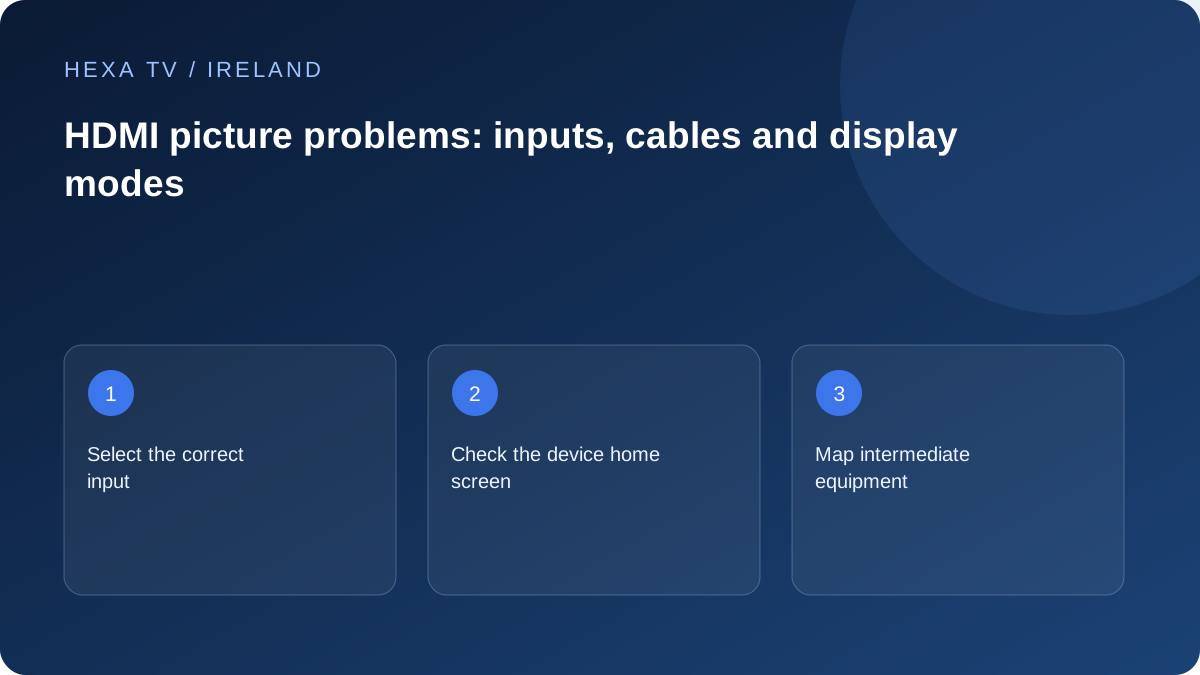
Start with visible device menus
Check whether the streaming device's home screen appears on the chosen TV input. If it does not, verify power, input selection and cable seating according to the equipment manuals.
If menus work but a stream does not, compare another source or app. That narrows the fault beyond basic input selection.
Check the supported mode and path
Record the TV input, output device and any intermediate receiver or soundbar. Consult the model-specific guidance for supported picture and audio modes. Not every connector or adapter carries every advertised format.
Where safe and supported, compare a simpler direct connection to isolate an intermediate component. Keep the original arrangement recorded so you can restore it.
Report the exact behaviour
Distinguish no signal, black picture with sound, flashing image and a format warning. Include whether the fault began after changing a cable, device or setting.
Avoid buying a replacement based only on the most expensive specification. Establish the required mode and the component that fails the comparison. Account renewal does not fix an incorrectly selected input.
Make a port-by-port connection map
Write the source device, each intermediate device and the television input in order. A box connected to a receiver and then to the TV has two cable stages; a box connected directly has one. Add any switch, splitter or adapter rather than treating it as invisible.
Read the physical port labels and compare them with the selected inputs on the screen or receiver. If someone moved a cable, the familiar input name may no longer identify the connected socket. Take a private photo of the arrangement before changing it, keeping account and network labels out of view.
Check the picture before the programme
First establish whether the streaming device's own home screen appears. If it does not, focus on power, input selection and the supported output path. If the home screen is visible but one programme fails, the investigation should also consider the app and source.
Apple's official black-screen guidance and Amazon's Fire TV instructions both address their respective HDMI paths. Use the guidance for your exact device. A remote-button sequence intended for another model is not a safe substitute for identifying the hardware in front of you.
| Observation | Single comparison | Possible next owner |
|---|---|---|
| No device menus | Correct TV input and supported connection | Device or television manufacturer |
| Direct connection works | Original intermediate path with same source | Receiver, switch or soundbar support |
| One output mode fails | Another documented supported mode | Equipment compatibility investigation |
| One cable arrangement fails | Known suitable cable with other conditions unchanged | Connection-path support |
| Menus work, one app fails | Another supported app | App publisher or source service |
| Brief blank at format change | Official matching-mode guidance | No hardware conclusion from the transition alone |
Use a supported direct connection to isolate an accessory
Where the manufacturer recommends it, connect the source device directly to a suitable TV input for a temporary comparison. Keep the same programme and output mode if supported. Record whether both menus and video return, not merely whether the television stops showing No Signal.
If bypassing the accessory helps, consult its capabilities and configuration. The result does not prove that it is physically defective. It may be on the wrong input or unable to pass the selected format. Preserve the original arrangement until you have chosen a documented permanent path, especially when the accessory also handles household audio.
Check format support across every relevant stage
A television supporting a particular format does not establish that every HDMI input, receiver or accessory in front of it supports the same arrangement. Apple's 4K guidance explicitly addresses the display mode, input and intermediate equipment. Use the actual models' documentation rather than a generic cable slogan.
If a supported lower mode produces a visible picture, record it as a comparison. Do not claim the original source was not 4K or that the account is defective solely from that result. The format and connection chain need to be understood together before selecting the final output.
Handle cables and power within normal user access
Use the connection and power equipment specified for the device. Follow the manufacturer's instructions when reconnecting cables, and avoid forcing plugs or stretching a cable behind a mounted television. If accessing a socket requires unsafe lifting or dismantling, stop and obtain appropriate help.
Change one component at a time. Replacing every cable while also moving inputs and changing resolution can restore a picture without revealing what mattered. A modest, documented comparison is easier to repeat and less likely to leave the household with an unexplained arrangement.
Check the normal viewing routine afterwards
Once a supported picture is restored, test starting the system, opening the app, changing to another input and returning. Check sound and remote volume control because a changed HDMI route can affect the audio arrangement even when the image is correct.
Keep the final port map and relevant supported settings. If the issue remains, send models, input labels, output mode and the direct-connection result to the appropriate manufacturer. A content provider needs the app and programme evidence; it cannot infer a physical cable arrangement from a generic black-screen report.