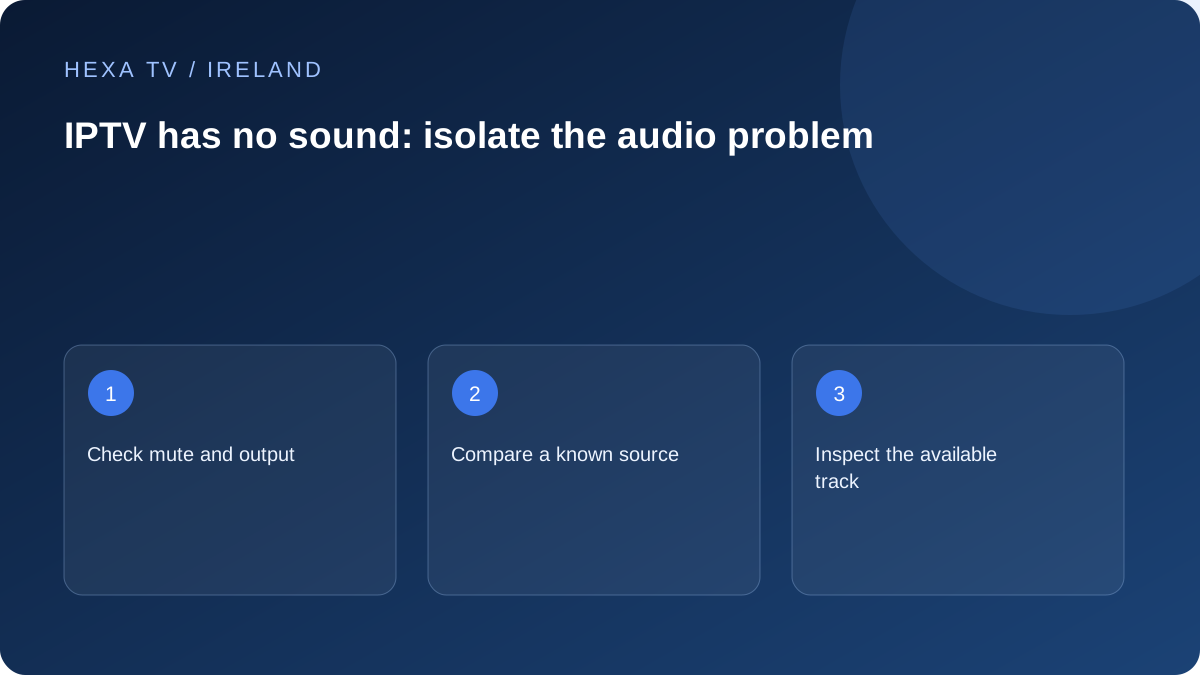
Check the simple output state
Confirm mute and volume on the television and any separate audio device. Look for a headphone or Bluetooth output that may still be selected. Use another known source to establish whether the speakers work.
If sound returns on another source, keep the original programme and track details for the next comparison.
Inspect the actual audio track
Some programmes offer multiple tracks and some offer only one. Select an available supported track through the player controls. If another programme has sound, the failing source may need provider investigation.
Do not change several audio-format settings at once. Record the original value and follow the player or equipment manufacturer's guidance for a specific test.
Separate the TV from the soundbar path
Where practical, compare with TV speakers before investigating a receiver or soundbar. If the television plays sound but the external system does not, describe that connection and the formats in use.
For support, include whether the problem affects live, replay or both, which output works and the exact models. A silent programme does not establish that the entire subscription or broadband connection has failed.
Locate the point where sound disappears
Write the route in order: source programme, player, streaming device or built-in app, television and any external speaker system. Then identify one audible reference on that same route. A TV's menu sound alone does not prove that every programme audio format is supported.
If an aerial-fed Saorview programme is audible but the external device is silent, the speakers work through at least one path. That comparison narrows the question without proving that the external app or account is at fault. Include the input difference in your note.
Check outputs before buying another service
Inspect the selected sound destination using the device's supported controls. A previously paired headphone set, a soundbar input or the laptop's own speakers can remain selected. Keep the normal volume low enough for a safe test in case sound returns suddenly.
Use the remote that actually controls the active output. A volume display on the television may not tell you the receiver's level. If controls appear to work but nothing is audible, identify which device is responding before repeatedly increasing every volume setting.
Use the sound pattern to choose a branch
These comparisons help locate the problem; they do not certify a failed component.
| Pattern | One relevant comparison | Next question |
|---|---|---|
| One programme silent; another audible | Select another supplied track if available | Is the source track absent or unsupported? |
| All player programmes silent; another app works | Same speaker route with the other app | Is the player's audio configuration relevant? |
| TV speakers work; soundbar does not | Keep source constant and compare outputs | Does the external route support the selected input and format? |
| Every input silent | Check mute, destination and device guidance | Is this a TV or speaker-system problem? |
| Sound returns after headphones disconnect | Inspect the intended default output | Was audio routed to the accessory? |
Use a documented format comparison
Audio format controls can change what the device sends to the next component. Consult the exact device, TV and sound-system documentation before selecting a test format. Preserve the original setting so a comparison can be reversed.
Apple's current Apple TV sound article includes device-specific output and format checks; those instructions should not be copied unchanged onto another platform. The same principle applies to Google TV guidance containing model-specific soundbar sections. Use the relevant manufacturer's instructions, not a universal menu recipe.
Simplify the external chain when practical
A box connected through an HDMI switch or receiver has more components than a box connected directly to the television. If the manufacturers' instructions support a direct comparison and the cabling is safely accessible, it can help identify whether the intermediate route is involved.
Record the actual chain before moving anything. Turn equipment off as its instructions require, avoid forcing connectors and restore the ordinary arrangement after the test. Do not open devices or interfere with mains wiring. A hardware comparison should remain within normal user-accessible connections.
Keep language and accessibility tracks distinct
A programme may supply a main audio track, an alternate language or audio description, but their availability depends on the source. Check which tracks appear and which one is selected. A player offering an audio menu does not prove that the desired track exists.
If one listed track is silent while another is audible, report the programme and track labels to the provider. If all tracks fail only on one output chain, include that device information. Changing the whole subscription is not the first response to a single track or output selection.
Finish with a concise audio report
Include the title, live or replay mode, local time, app version and exact audio path. State which comparison produced sound. A report saying 'TV speakers work; the same programme is silent through this receiver' is more actionable than saying the internet is broken.
If sound returns after a particular change, repeat the ordinary viewing task at a reasonable level and retain the configuration. Do not claim every future programme is solved. Keep source-specific faults and equipment-specific faults separate so follow-up reaches the right support route.