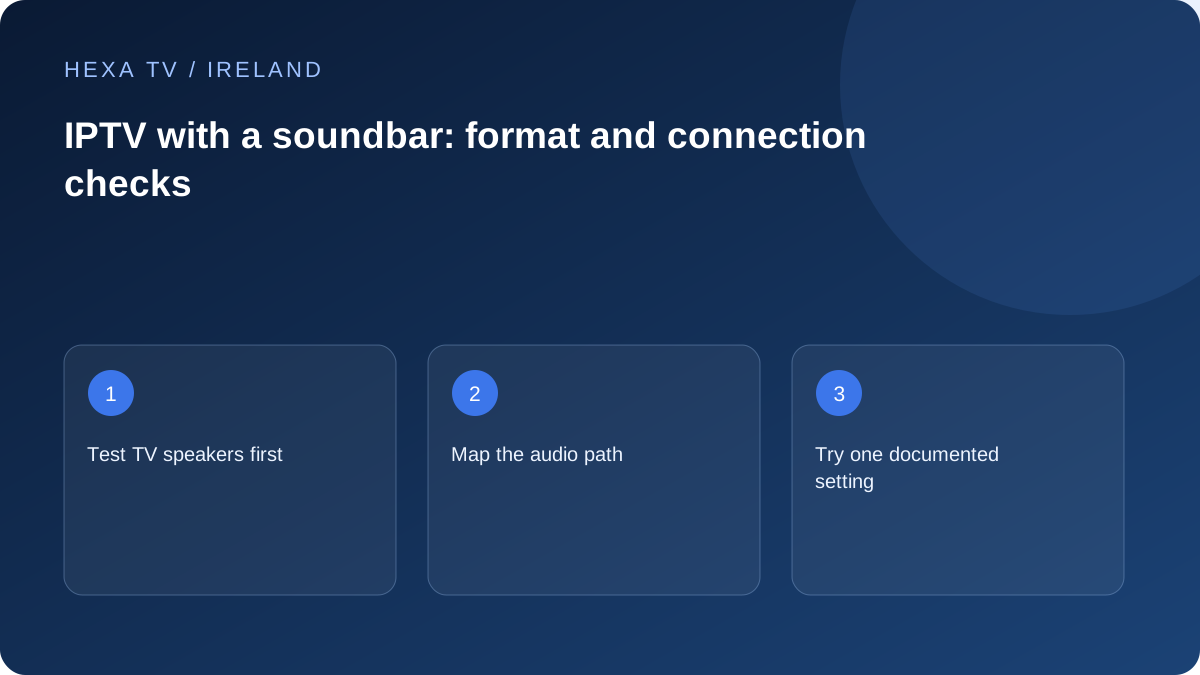
Establish the simplest audio baseline
Play a known available programme through the TV speakers. Check mute and the selected audio track. If there is no sound there, investigate the source or player before changing soundbar settings.
If the TV speakers work, note the programme and track before switching outputs. That makes the next comparison meaningful.
Map the physical connection
Record whether the streaming device connects to the television, a receiver or the soundbar, and which supported return-audio or optical connection is in use. Consult the exact equipment manuals for ports and supported formats.
Do not assume every HDMI socket has the same role. A setting copied from another television may not match your model's connection path.
Change format settings one at a time
Where manufacturer guidance offers an appropriate simpler audio mode for diagnosis, record the original setting before testing it. If sound returns, report the complete format and connection combination rather than calling the content account faulty.
If lip synchronisation is the issue, use only the documented controls and compare another programme. A delay occurring on one source may differ from a delay across every TV input.
Keep the result for support
Include TV, streaming-device and soundbar models, app version, connection path and which outputs work. The no-sound guide covers source and track checks; this page focuses on the extra equipment stage.
Write down the audio route before touching cables
A simple sketch might read 'streaming box to television by HDMI; television to soundbar through its documented return-audio connection'. Another household may connect the box to a receiver first. These are not interchangeable arrangements, and the correct input or output setting depends on the actual equipment.
Name both ends of each cable, including the port labels. Take a private photo if the sockets are difficult to see, avoiding any account or network labels. This gives you a way back to the original working layout and makes a support conversation much more precise than saying that everything is connected by HDMI.
Separate missing audio, wrong speakers and lip-sync
Before troubleshooting, describe the symptom narrowly. Silence is different from sound coming from the television rather than the soundbar. Speech arriving late is different again. A surround-format badge missing from the receiver's display can coexist with perfectly audible stereo sound.
The table provides a practical order for comparing those situations. It does not diagnose an unsupported format or defective cable from appearance alone.
| Symptom | Controlled check | Next direction |
|---|---|---|
| No sound from either output | Same programme with a different available track; another source | Source, player or device audio output |
| TV speakers work, soundbar silent | Same source and track after selecting the supported external output | Soundbar input, connection and format support |
| Soundbar works on another TV input | Compare the streaming device's output configuration | That device or app path |
| Speech is delayed on every input | Compare TV speakers and external system | System-wide processing or documented delay controls |
| Only one programme is mistimed | Another episode or source without changing equipment | Programme-specific report |
| Sound works but expected surround indication is absent | Actual supplied track and equipment capability | Format availability, not necessarily a playback failure |
Use the manufacturer's simpler-output test carefully
Apple's audio troubleshooting guidance discusses output and format checks for Apple TV. If that is your device, follow its current instructions and keep the previous setting. A simpler supported format can help determine whether the sound system is handling the original output, but should not be described as a universal permanent configuration.
For another device, use its own documentation. Do not toggle every passthrough, surround and processing option in succession without retesting. If one change restores sound, write down both values and the source used. That record allows support to investigate the capability mismatch without losing the result.
Treat lip-sync as a separate comparison
Use a scene with clearly visible speech and compare television speakers with the soundbar while keeping the source fixed. If the app or device documents an audio delay, record the initial value before adjustment. Do not alter the programme-guide timezone to correct speech timing; they address different functions.
A fixed delay may help a consistent offset but not an offset that grows throughout a programme. Note whether pausing, reopening the item or changing to another source changes the behaviour. Avoid stacking delay corrections in the player, television and soundbar, because their combined effect becomes difficult to understand.
Restore the everyday setup and document the result
After identifying a working configuration, return cables to the chosen supported arrangement and verify volume control with the remote the household normally uses. Check that switching inputs and reopening the app do not unexpectedly return sound to another output. A technically correct connection is not convenient if nobody can operate it.
Keep the equipment models, connection diagram and final settings together. If the issue remains, provide that record to the relevant manufacturer or app publisher, along with which output worked. The content provider needs programme and track details; the soundbar manufacturer needs the equipment path. Send each team the part of the record relevant to its role.