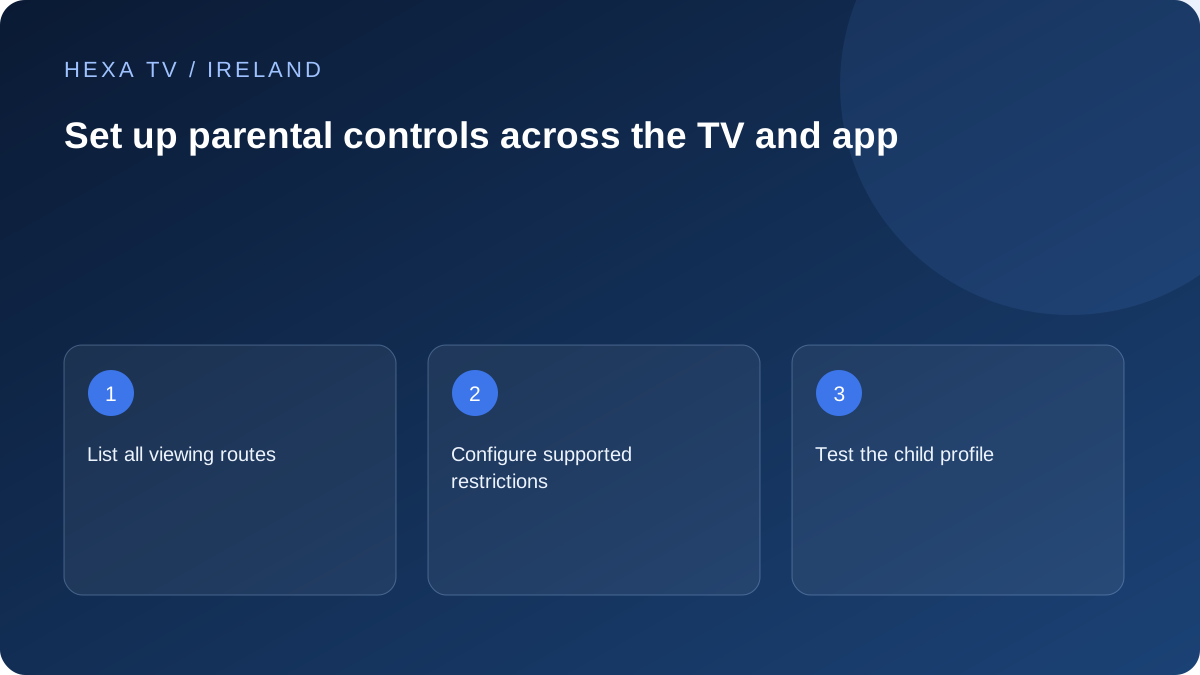
Identify every route to content
List the player, broadcaster apps, device store and other inputs a child can reach. A PIN in one app may not restrict a different app or a web browser. Decide which controls belong at the device level and which belong to a service account.
Use the manufacturer's and app publisher's current instructions for the exact model. Menu names and supported restrictions vary, so avoid copying a path from another television.
Test the restriction from the child profile
After setting a PIN or age restriction, leave the settings screen and try the intended child or guest profile. Check catalogue browsing, search, purchases and switching profiles. Verify the actual behaviour after restarting the app.
Do not use the account password as a casually shared household PIN. Store recovery details privately so the adult responsible can change settings without publishing credentials.
Keep the household routine understandable
Explain which app and profile should be used and what to do when a programme is blocked. Controls are easier to maintain when the household does not need to disable them for ordinary navigation.
Recheck after app updates, device replacement or a new playlist import. A reset may restore defaults, and a newly added app may have independent controls. No parental-control method is presented here as a substitute for supervision or a guarantee about every catalogue item.
Assign a job to each layer of protection
Think of the household setup as several doors, each with its own key. The TV home screen controls entry to apps, the app controls its catalogue, and the account may control purchases or profiles. A useful setup gives each control a specific job rather than relying on one PIN to cover everything.
A separate streaming stick connected by HDMI is another device. Settings in the television's built-in app may not apply to the stick. Similarly, restricting a player does not automatically restrict the aerial input used for Saorview. Check the manufacturer's controls for each route the child can actually reach.
| Layer | Question to answer | Verification |
|---|---|---|
| Device | Can an adult profile or store be opened freely? | Try leaving the child's intended home screen |
| App | Are search and all categories restricted as intended? | Search for a title outside the permitted collection |
| Account | Are purchases or account changes protected? | Inspect the documented adult approval process without making a purchase |
| External input | Does another box provide an unrestricted route? | Switch inputs and inspect its own controls |
| Recovery | Can the responsible adult restore access? | Keep private recovery information accessible to that adult |
A Google TV example, with its limits
Google's current instructions describe children's profiles with chosen apps, screen-time controls and a child-profile lock on supported devices. Availability varies by region and device. Its guidance also distinguishes Google's content restrictions from recommendations and search results supplied inside other apps.
Use that distinction when reviewing an IPTV player. Allowing the app in a children's profile is not proof that every item within it has been filtered. Open the app from the intended profile and inspect its own supported restrictions. If the app cannot meet the household's requirement, leaving it unavailable to that profile may be more workable than relying on hidden categories.
Separate viewing permission from spending permission
A child may be allowed to watch a programme without being allowed to install a paid app, rent a film or alter a subscription. Treat those permissions separately when reviewing settings. Do not test a purchase restriction by completing an actual transaction; inspect the approval requirement using the platform's documented process.
Keep the adult account password out of routine shared instructions. If the family uses a simple viewing PIN, avoid reusing it as the password for email or the payment account. A support conversation about a blocked programme should not require publishing either credential.
Write a short family viewing routine
A useful routine names the remote, the permitted app and the intended profile. It also says whom to ask if a programme is unavailable. This is more practical than telling children to navigate a large catalogue while expecting a hidden filter to handle every result.
For a younger viewer, the adult might open the chosen programme and verify the profile before handing over the remote. For an older child, explain why a search result or another app can have different controls. The right arrangement depends on the household; this guide does not prescribe a universal age threshold.
Recheck only the changes that matter
After an app update, test the restricted search and profile-switching behaviour that the family relies on. After a replacement television or external box, repeat the whole device check because the old settings may not transfer. After a new playlist, verify the actual catalogue controls rather than assuming that a previous category layout remains unchanged.
Keep a short private record of the settings checked and the adult who maintains them. Do not record the PIN on a note beside the TV. If recovery becomes necessary, use the official platform or publisher process instead of disabling protections through an unofficial tool.